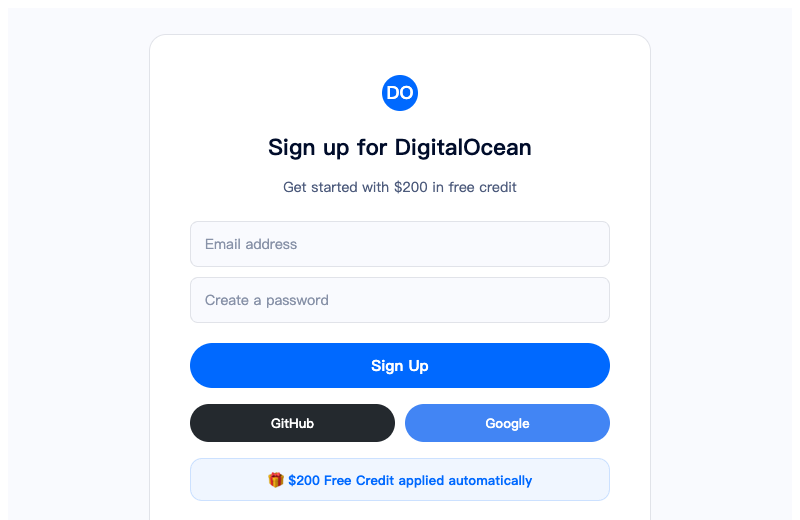
1 Sign Up & Claim Free Credit
Go to DigitalOcean sign-up page to create your account and get $200 free credit.
- Sign up with email, Google, or GitHub
- Verify your email address
- Add a payment method (credit card or PayPal)
- $200 credit is automatically applied to your account
💡 Tip: Use the referral link to get $200 free credit. You won't be charged until you exceed the credit amount.
2 Create a New Droplet
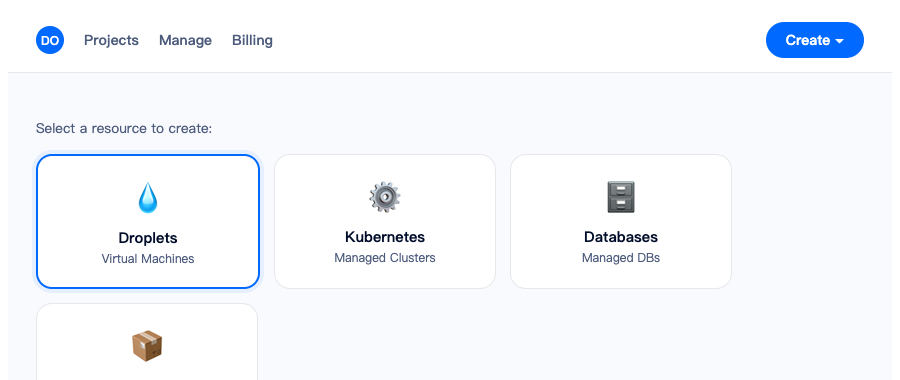
From the DigitalOcean dashboard, click the green "Create" button and select "Droplets".
- Click Create → Droplets in the top-right corner
- You'll be taken to the Droplet creation page
3 Choose a Region
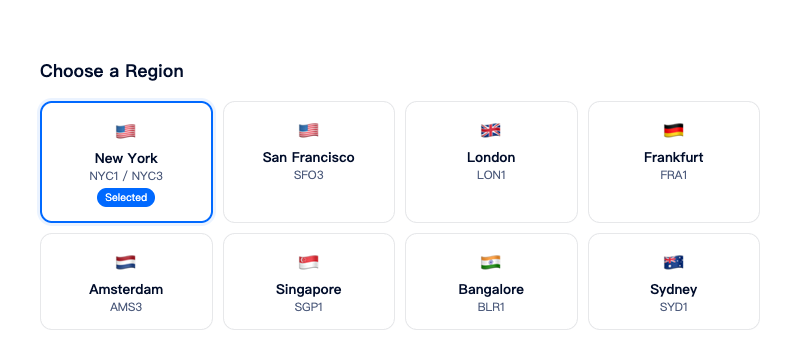
Select the data center closest to your target audience for the lowest latency.
- North America: New York (NYC1/2/3), San Francisco (SFO1/2/3), Toronto (TOR1)
- Europe: London (LON1), Amsterdam (AMS3), Frankfurt (FRA1)
- Asia-Pacific: Singapore (SGP1), Bangalore (BLR1), Sydney (SYD1)
💡 Tip: For US-based websites, NYC or SFO are great choices. For European audiences, choose FRA or LON.
4 Choose an Image
Select your operating system or a one-click app.
- OS: Ubuntu 24.04 LTS (recommended), Debian, CentOS, Fedora, Rocky Linux
- One-Click Apps: WordPress, Docker, LAMP, Node.js, and 100+ more
- Custom Images: Upload your own ISO or snapshot
5 Choose a Plan
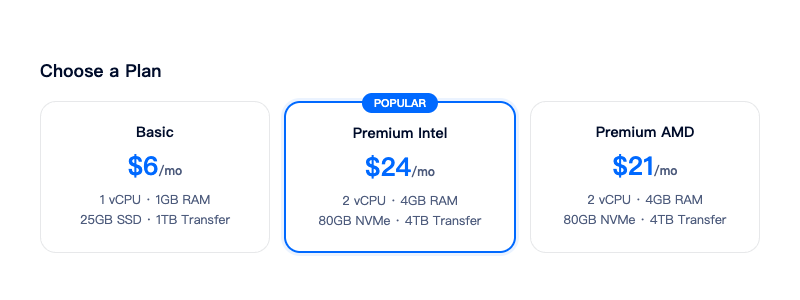
Select the Droplet size based on your needs.
| Use Case | Recommended Plan | Price |
|---|---|---|
| Personal blog / testing | Basic 1GB | $6/mo |
| Small web app / WordPress | Basic 2GB | $12/mo |
| Production app / API server | Premium Intel 4GB | $24/mo |
| High-traffic site / database | Premium AMD 8GB | $42/mo |
6 Set Up Authentication
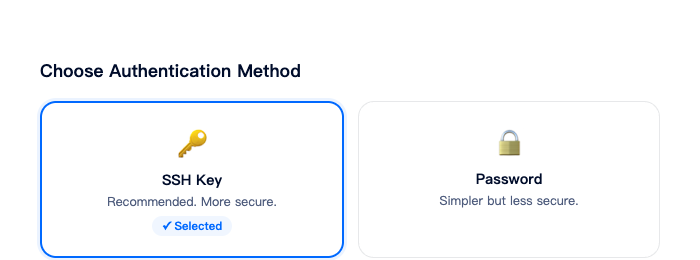
Choose how you'll log in to your Droplet.
- SSH Key (recommended): More secure, no password needed. Add your public key.
- Password: Simpler but less secure. Use a strong password.
# Generate an SSH key (if you don't have one)
ssh-keygen -t ed25519 -C "[email protected]"
# Copy your public key
cat ~/.ssh/id_ed25519.pub
ssh-keygen -t ed25519 -C "[email protected]"
# Copy your public key
cat ~/.ssh/id_ed25519.pub
7 Create & Connect
Click "Create Droplet" and wait about 55 seconds for it to spin up.
# Connect via SSH (replace with your Droplet's IP)
ssh root@your_droplet_ip
ssh root@your_droplet_ip
Your Droplet's IP address is shown in the DigitalOcean dashboard. You're now connected to your cloud server!
8 Initial Server Setup (Recommended)
Secure your new Droplet with these essential steps:
# Update system packages
apt update && apt upgrade -y
# Create a non-root user
adduser deploy
usermod -aG sudo deploy
# Set up firewall
ufw allow OpenSSH
ufw enable
# Allow HTTP/HTTPS (for web servers)
ufw allow 80/tcp
ufw allow 443/tcp
apt update && apt upgrade -y
# Create a non-root user
adduser deploy
usermod -aG sudo deploy
# Set up firewall
ufw allow OpenSSH
ufw enable
# Allow HTTP/HTTPS (for web servers)
ufw allow 80/tcp
ufw allow 443/tcp